Personal Professional Card Astro
"Hi there!, I'm Brian. I hope this small template helps you gain visibility while you build great projects. Thank you for using it. I wish you success in everything you set out to do; you will surely achieve great things.
You can help me by following me, giving a Star to the template, and sharing it so others can see and use it.
Have a great day!"
⭐ Leave a star if you like this project! ⭐️
Deploy
🚀 Project Structure
Inside of your Astro project, you'll see the following folders and files:
User Guide
This guide explains how to customize the template for your personal use. In the src/pages/index.astro
External Card Customization
title: This change will be reflected in the browser tab.description: This is a metadata tag used to provide a brief description of your page in search engines.
Internal Card Customization
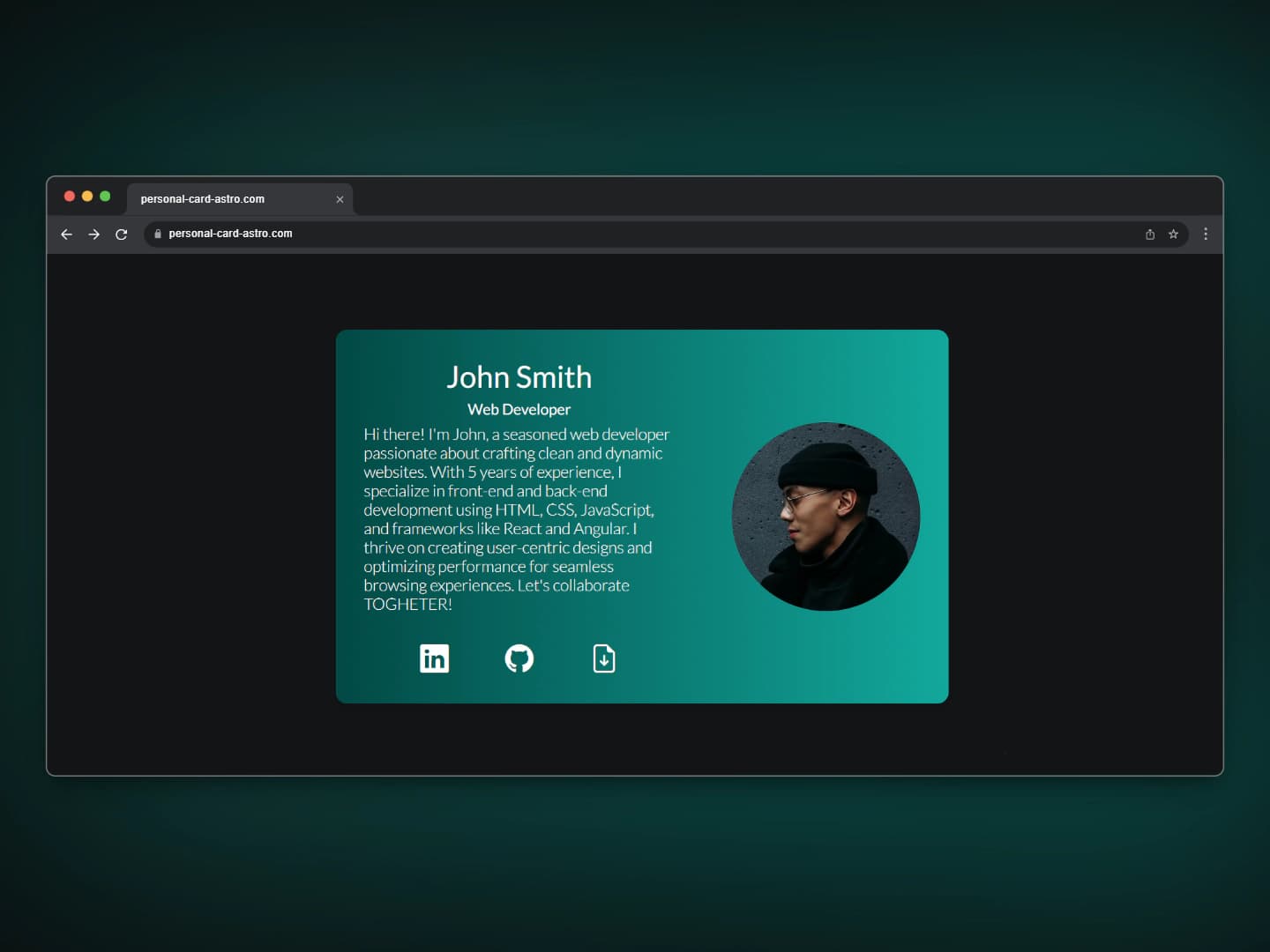
name: Enter your name here.position: Enter your job position here.about me: Write a brief description of who you are and what you do. It's recommended to keep it under 540 characters.linkedinandgithub: Enter the URLs to your personal pages here.cvLink: Provide the URL to your resume in PDF format for download.profileImage: Upload your professional profile picture here.
File Management
- Resume: Place your resume PDF file in the
public/filesfolder. - Profile Image: Place your profile image in the
public/imagesfolder. It's recommended to use the .webp format for better web performance. - Favicon: Replace the
public/favicon.icofile with your own, preferably keeping the same file name.
Layout Customization
- In the
src/layoutsfolder, you will find theBaseLayout.astrofile. This file contains the complete HTML structure. Here, you will see references to the favicon, Google fonts, and Bootstrap icons.
Style Customization
- In the
src/stylesfolder, you will find the styles for the Card. You can make visual changes here, such as modifying colors, fonts, sizes, etc.
Easy, Right?
Getting Started with Your Template
Follow these steps to initialize and deploy your template using Astro and Netlify.
Prerequisites
Make sure you have the following installed on your machine:
Installation
Option 1: Clone the Template Repository
-
Clone the Template Repository
https://github.com/alcarazbrian/professional-card-astro.gitcd professional-card-astro -
Install Dependencies
npm install
Option 2: Download the ZIP File
-
Download the ZIP File
Download the template as a ZIP file from the repository's GitHub page.
-
Extract the ZIP File
Extract the contents of the ZIP file to your desired location.
-
Navigate to the Project Directory
Open your terminal and navigate to the extracted directory.
cd path-to-extracted-directory -
Install Dependencies
npm install
Running the Project Locally
To start the development server, run:
This command will start the Astro development server. You can view your site at http://localhost:4321. Any changes you make to the project files will be reflected in real time in your browser. To stop the development server, press Ctrl+C in the terminal.
Building the Project
To build the project for production, run:
Deploying to Netlify
Using Netlify Drop
-
Build the Project
Ensure your project is built by running:
npm run build -
Drag and Drop
Go to Netlify Drop. Drag and drop the
distfolder from your project directory into the Netlify Drop area. This will upload and deploy your site.Your site should now be live on Netlify. You can view the live site URL in the output of the command or from your Netlify dashboard.
Commands
All commands are run from the root of the project, from a terminal:
| Command | Action |
|---|---|
npm install | Installs dependencies |
npm run dev | Starts local dev server at localhost:4321 |
npm run build | Build your production site to ./dist/ |
👀 Want to learn more?
Feel free to check Astro documentation or jump into Astro Discord server.